
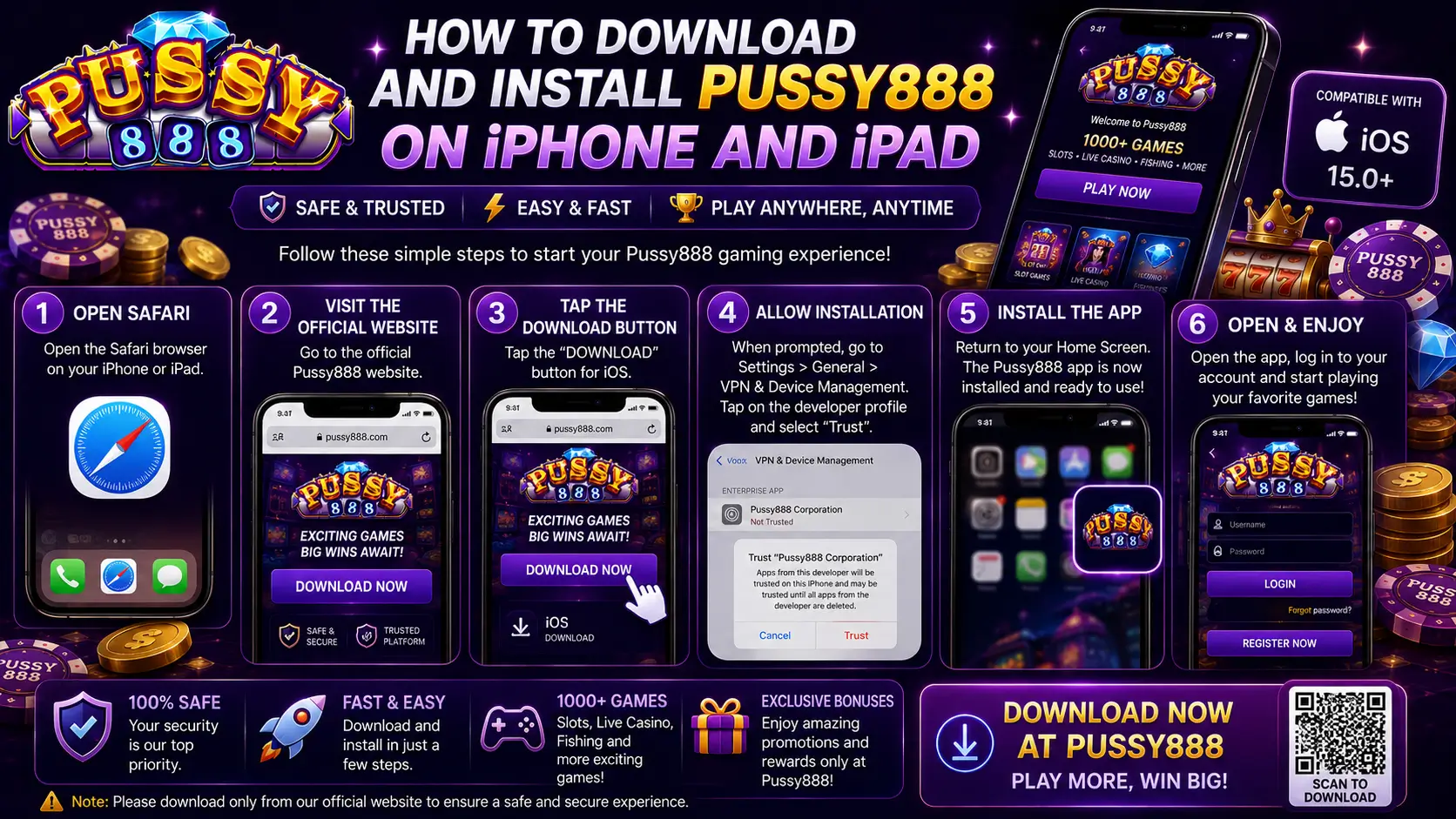
This official Pussy888 Singapore guide explains how to download and install Pussy888 on an iPhone or iPad through the current iOS route published by this website.
Pussy888 is not installed from an Android APK on Apple devices. The iOS download button opens an Apple installation service linked to the current Pussy888 installation manifest. Because this route operates outside the App Store, iOS may ask you to confirm the installation and verify the application developer before the app can open.
Apple can rename or move settings between iOS and iPadOS releases. Follow the labels shown on your own device, and never approve an organisation, profile or permission that does not match the official route you intentionally opened.
Pussy888 iOS Is Not an APK
APK is the Android application-package format. An iPhone or iPad cannot open or install an APK, so downloading one on iOS will not install Pussy888. Apple devices use a separate iOS application package delivered through an Apple-compatible installation manifest.
This distinction matters when troubleshooting. Instructions such as “Allow unknown apps,” “Open the Downloads folder” or “Install the APK” apply to Android only. On iOS, the important stages are approving the installation prompt, waiting for the icon to finish loading and, when requested, verifying the developer in Settings.
Before You Download Pussy888 on iPhone or iPad
Complete these checks first to reduce interrupted downloads and verification errors:
- Use Safari when opening the iOS installation route.
- Connect to stable Wi-Fi or mobile data and temporarily disable any network filter that is blocking the installation host.
- Confirm that the device has enough free internal storage for installation and later updates.
- Update iOS or iPadOS to the newest version supported by your device.
- Remove an unofficial or duplicated Pussy888 icon before installing the current official version.
- Keep your correct username, password and verified account-support route available before replacing an existing app.
Do not erase an existing working installation merely because a new link is available. If you can still access your account, first confirm that an update or reinstallation is actually required.
Step 1: Open the Official Pussy888 iOS Download
- Open Safari and visit pussy888-singapore.com.
- Go to the App Portal or use the iOS Download button published on this website.
- When Safari hands the request to iOS, read the application name shown in the installation prompt.
- Tap Install only if you deliberately opened the official Pussy888 route.
- Return to the Home Screen and wait for the app icon to finish loading.
The button uses an itms-services installation request. It is intended to open through iOS; copying it into a non-Apple device or an unsupported in-app browser may produce no visible response.
Step 2: Confirm the Installation Prompt
Depending on your iOS version, the first tap may display a confirmation such as “Install Pussy888” or ask whether you want to install the application. Read the prompt rather than tapping automatically.
- If no prompt appears, reopen the page directly in Safari instead of inside Facebook, Telegram or another in-app browser.
- If the icon remains grey, keep the device connected and tap the icon once to see whether iOS has paused the download.
- If iOS reports that the application cannot be installed, do not repeatedly approve the same request; use the troubleshooting section below.
Step 3: Verify the App Developer When iOS Requests It
After installation, iOS may block the first launch with an “Untrusted Enterprise Developer” or similar developer-verification message. The exact wording and menu path can differ by release.
- Open Settings.
- Go to General.
- Open VPN & Device Management. On some older versions this may be named Profiles & Device Management or Device Management.
- Find the developer entry associated with the Pussy888 installation you just initiated.
- Read the displayed organisation name. Continue only when it corresponds to the expected installation route.
- On iOS 18 or iPadOS 18 and later, tap Allow & Restart. On earlier versions, tap Trust to establish trust.
- After the iPhone or iPad restarts, follow the onscreen instructions to complete developer verification. If an earlier version shows Verify App, keep the device online and use that option to complete verification.
Your device normally needs an internet connection while iOS verifies the developer. If the organisation name is unfamiliar, the profile asks to manage unrelated settings, or the route differs from the one published here, stop and use the Pussy888 platform safety guide before continuing.
Step 4: Launch Pussy888 and Sign In Safely
Open Pussy888 from the Home Screen after verification. The first launch may take longer while the application prepares local data and connects to the service.
- Use the username and password issued through the same verified platform partner where you registered.
- Check that the app reaches the expected Pussy888 login screen before entering credentials.
- Avoid saving your password on a shared iPhone or iPad.
- Do not make repeated password guesses; use the verified support route when account details are uncertain.
If installation succeeds but the session repeatedly ends afterward, use the guide explaining why Pussy888 logs users out automatically. That is an account or session issue rather than an iOS installation failure.
Installing Pussy888 on iPad
The iPad process uses the same official iOS download route: open the App Portal in Safari, approve the installation, wait for the icon and verify the developer if iPadOS requests it.
Some interfaces may appear scaled because the application was designed primarily for phone-sized screens. This does not by itself mean the installation is incomplete. If rotation, full-screen display or touch controls behave incorrectly, close and reopen the app, disable orientation lock and confirm that iPadOS is current.
How Pussy888 Updates Work on iPhone and iPad
An iOS installation delivered outside the App Store does not necessarily update through the normal App Store update list. When the current app stops opening or an official notice requires a newer build, return to the App Portal and use the current iOS route.
Before reinstalling:
- Confirm that you know the correct account username and recovery channel.
- Take note of any account identifier needed by official support.
- Check whether the existing icon must be removed before using the replacement route.
- Do not assume that an old saved installation link still points to the current signed build.
Your account balance and server-side records are tied to the account, not to the Home Screen icon. However, deleting the application can remove locally saved login details and preferences.
Common iPhone and iPad Installation Problems
The iOS Download Button Does Nothing
Open the page directly in Safari, allow the page to open the installation service and check that Screen Time or device-management restrictions are not blocking app installation. In-app browsers may not pass the installation request correctly.
The App Icon Is Grey or Says “Waiting”
Check the network, free storage and whether the device has paused the download. Tap the icon once, then restart the device if it remains stuck. Remove the incomplete icon before starting a fresh installation through the App Portal.
“Unable to Install” or “Unable to Verify App”
First confirm that the internet connection is working and that the date and time are set automatically. If verification still fails, the current signing certificate may be unavailable or the build may need replacement. Do not install a random certificate from another site; return to the official App Portal or verify the current status through an official platform partner.
“Untrusted Enterprise Developer”
Open Settings → General → VPN & Device Management and review the developer entry connected to the installation. Trust it only after confirming the organisation shown and the route used.
The App Worked Before but Suddenly Will Not Open
Check whether iOS was recently updated, whether developer verification is still valid and whether a replacement build has been published. Force-closing the app or restarting the device can solve a temporary launch fault, but a revoked or expired signing certificate normally requires the current official installation route.
The App Opens but Cannot Connect
Switch between Wi-Fi and mobile data, disable a VPN temporarily, confirm that iOS allows mobile data for the app and check whether the service is under maintenance. A connection fault after the login screen appears is different from a failed installation.
iOS Safety Checklist Before You Continue
- Start from the correctly spelled pussy888-singapore.com domain.
- Use the iOS route for Apple devices; never attempt to install an APK on iPhone or iPad.
- Read the app name, developer organisation and every permission prompt.
- Reject requests for unrelated remote management, root certificates, contacts, messages or banking credentials.
- Avoid “modified,” “unlimited credit” or “guaranteed win” versions.
- Use only the verified support channel attached to your official partner account.
Frequently Asked Questions
Is Pussy888 available in the Apple App Store?
The iOS version provided by this website uses the current official installation route outside the App Store. Begin with the App Portal instead of searching for similarly named App Store listings.
Can I use the Pussy888 APK on an iPhone?
No. APK files are for Android. iPhone and iPad require the separate iOS installation route.
Why does iOS ask me to trust or verify a developer?
Apps delivered outside the App Store may require developer verification before first launch. Review the organisation shown and continue only when it matches the installation you intentionally started.
Will reinstalling Pussy888 delete my account?
Reinstalling does not normally delete a server-side account, balance or transaction record, but it can remove locally saved credentials and preferences. Secure your username and recovery route first.
Why did Pussy888 stop working after an iOS update?
The update may have changed security checks, network permissions or compatibility. Restart the device, check developer verification and use the current App Portal route if a replacement build is required.
Can I install Pussy888 on both iPhone and iPad?
You can follow the same iOS route on a compatible iPhone or iPad. Account rules and simultaneous-login limits still apply, so avoid using the account on multiple devices at the same time unless your official partner confirms this is supported.
Final Installation Checklist
For a clean installation, use Safari to open the official Pussy888 App Portal, select the iOS route, approve the genuine installation prompt, wait for the icon and verify the correct developer only when iOS requests it.
If the app does not install, identify the exact stage that failed—no prompt, grey icon, developer warning, verification error or connection problem—before repeating the process. This avoids unnecessary profile changes and makes the correct fix easier to choose.
For Android instead, follow the separate Pussy888 APK installation guide. For uncertain domains, developer names or permissions, stop and review the Platform Guide before entering account information.